
Dish Recognition System (Standalone Offline Edition) Interface Guide
Local offline · Activation code license · On-device recognition
1. System Overview
This system is an on-device dish recognition application built on the Rockchip RKNN platform. All object detection, image classification, category feature management, sample ingestion and license verification run locally; no server is involved at runtime. After activation, recognition, category maintenance and local correction all work with the network disconnected.
The system consists of three parts: YOLO object detection, CLIP visual image classification and multi-object tracking. It supports positive category management, exclusion (negative sample) filtering, local sample capture and ingestion, plus manual region selection and category correction in the verification center.
The system is licensed by activation code: before first use you must enter an activation code that is bound to the device and carries a validity window. Only after local verification passes can you enter product management and real-time recognition. When not activated, models are not initialized and recognition is unavailable.
Functional boundaries compared with the online edition
- No gateway authentication, WebSocket heartbeat or device binding; licensing is fully local.
- No cloud training submission, online model/feature download, or version rollback.
- Samples are saved locally as original images; no online AI matting is used.
- Category features, sample images and verification records are persisted on the device and work offline.
2. Android UI Walkthrough
2.1 Home Screen
After launch the app enters the home screen, with the system name and the "Smart Recognition · Local Offline" subtitle at the top. Five feature entries are presented as cards, and the version number and device readiness status are shown at the bottom. If no valid activation code is detected, the app redirects to the activation page.
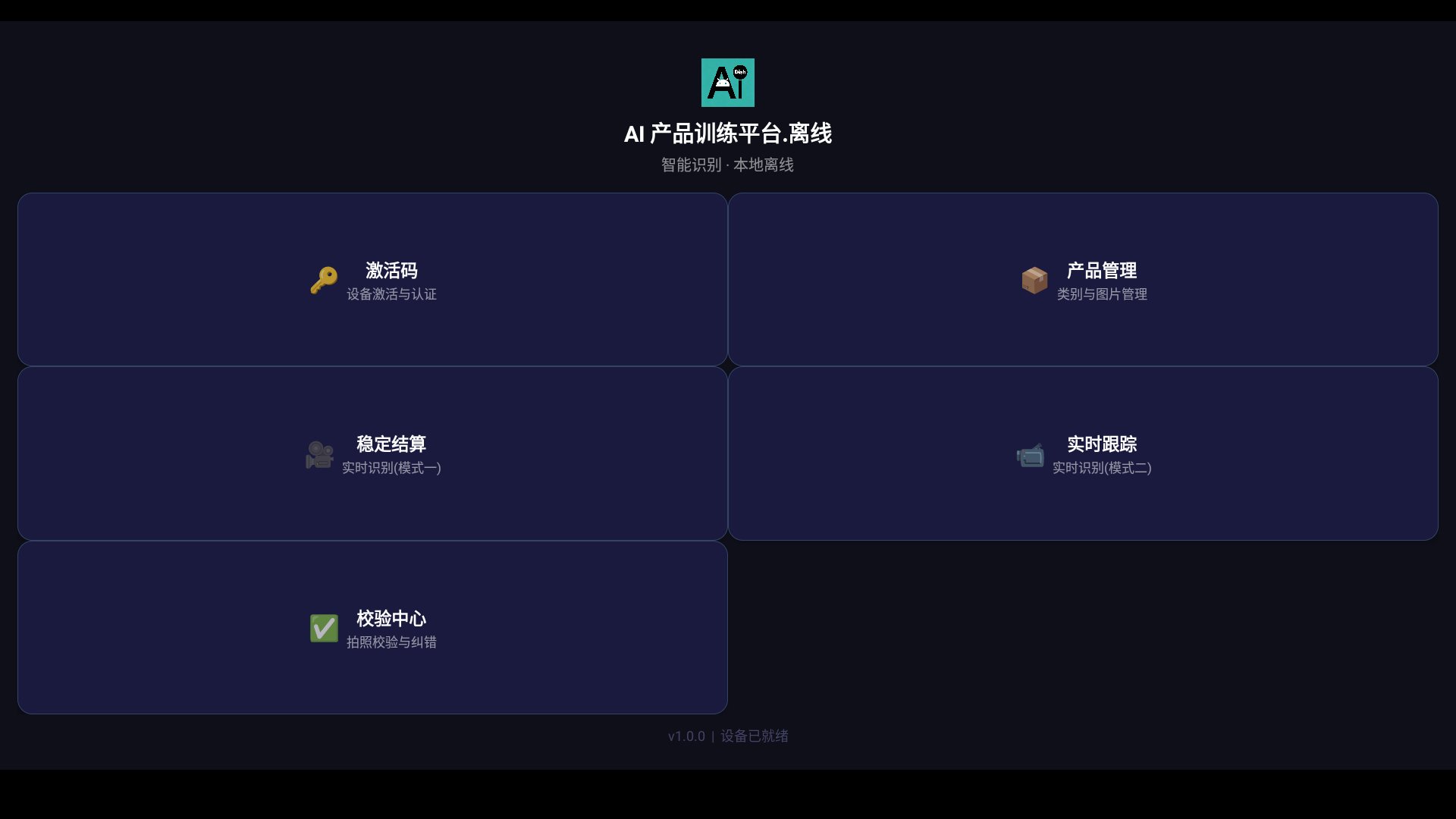
| Entry | Purpose |
|---|---|
| Activation Code | View the device identifier, enter and verify an activation code to complete local licensing |
| Product Management | Maintain positive categories and exclusions, capture sample images, extract category features locally |
| Stable Checkout | Enter real-time recognition mode 1 (locked mode); results are output after being stable across frames |
| Real-time Tracking | Enter real-time recognition mode 2 (free mode); results are output per track ID in real time |
| Verification Center | Camera preview, region selection, category correction and saving verification records |
2.2 Device Activation
The activation page is a local offline licensing screen. It shows the device ID, current time and last recorded time. Enter the activation code and tap "Verify code and continue". On success, the remaining valid days are shown along with the activation start time, end time and validity days. The activation state is written to local storage, so it is not requested again on subsequent launches.
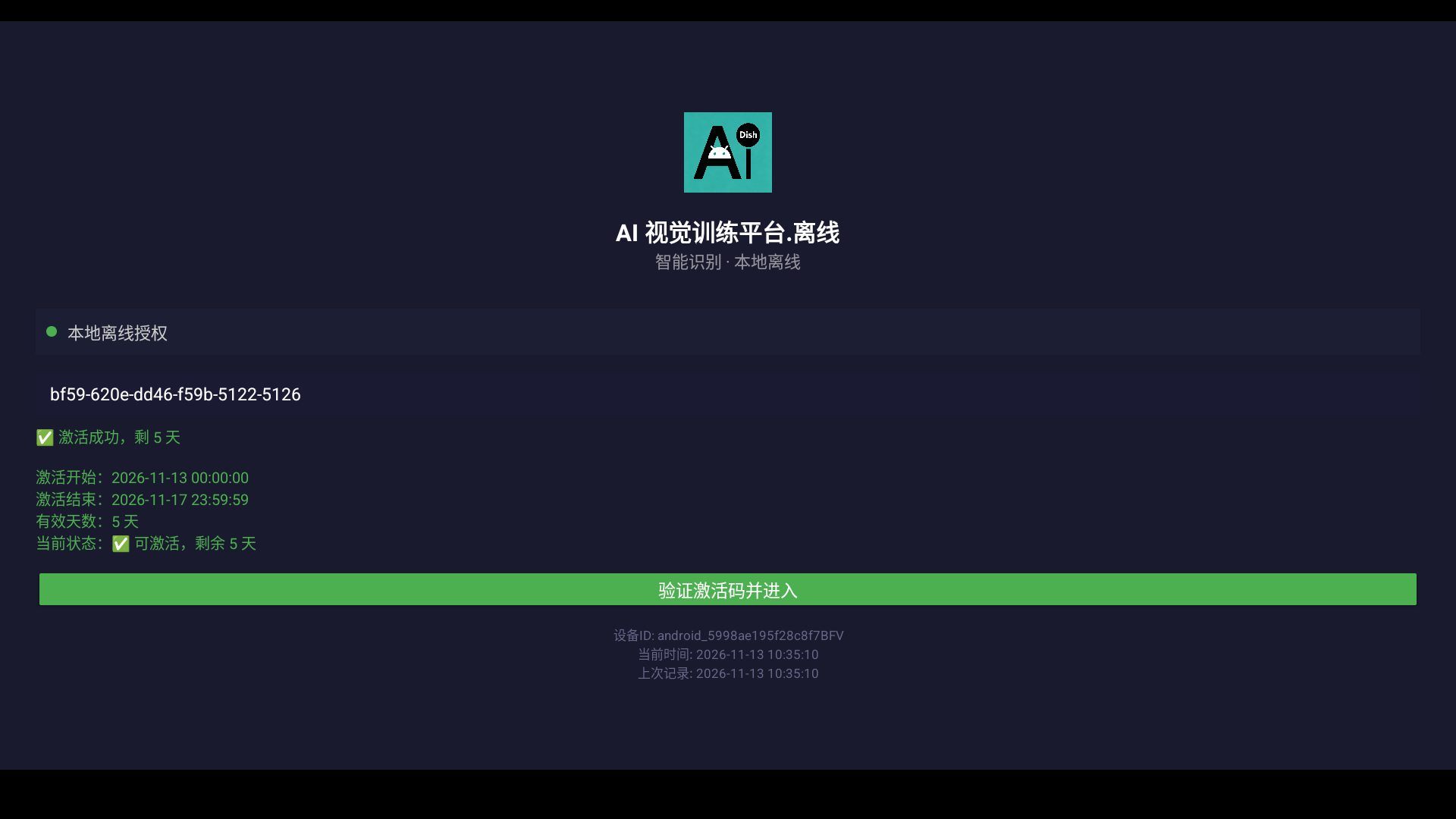
The activation code is bound to the device identifier and carries a validity window. If the window has not started, the end date has passed, the device does not match or the code has been tampered with, the page shows the corresponding error. See "Activation Code License" in section 3 for detailed rules.
2.3 Product Management
Product management maintains recognizable categories and their sample images. The header shows the current number of categories and exclusions. The list shows positive categories by default; each entry displays its name, sample image count and training state (trained or newly added).
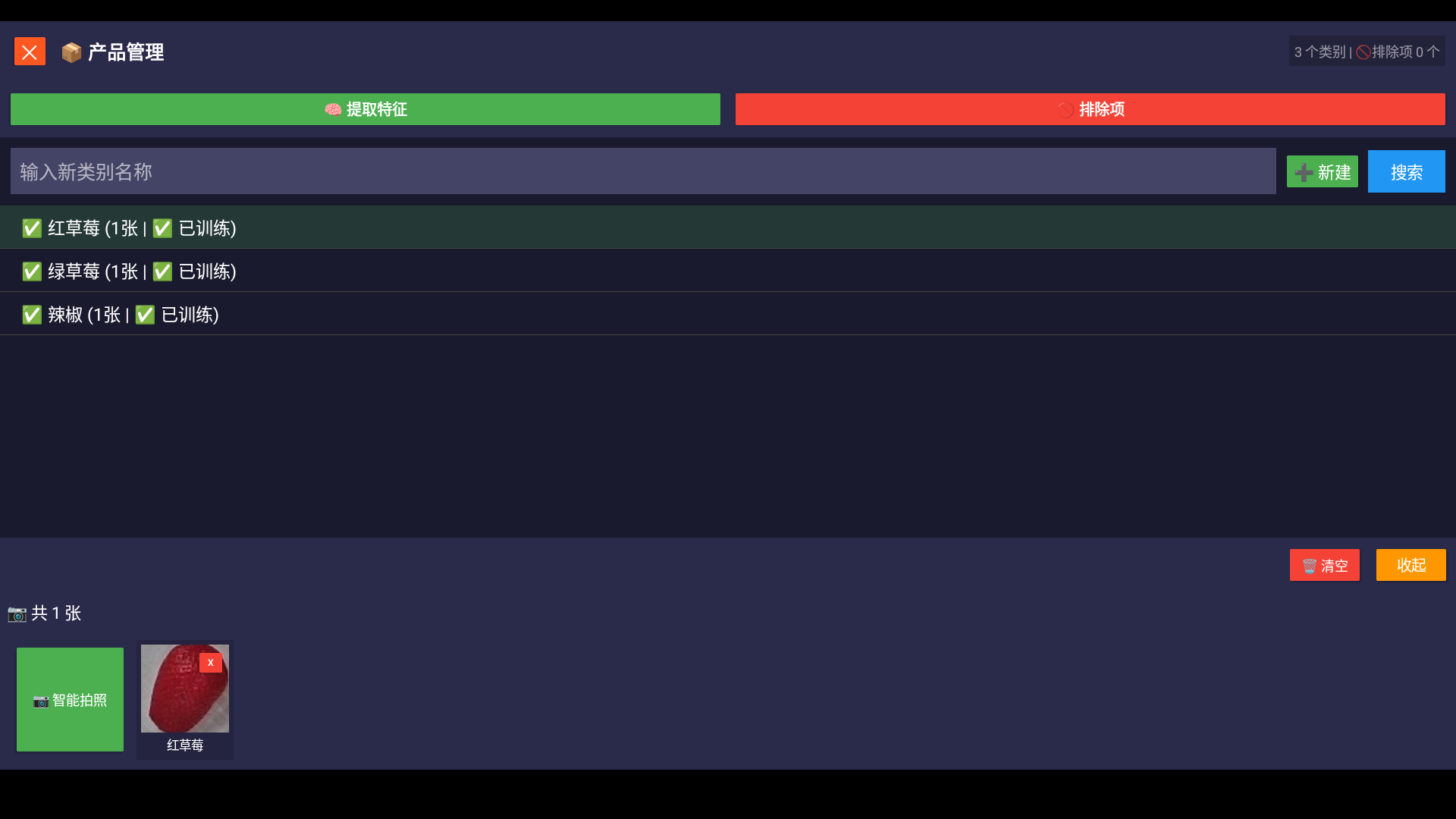
- Create category: enter a category name in the input box and tap create to add an empty category.
- Search: enter a keyword and tap search to filter the category list by name.
- Sample images: after selecting a category, the image area shows its sample thumbnails; each thumbnail can be deleted from its top-right corner.
- Smart capture: start the capture flow to shoot and crop samples for the current category (see the next section).
- Vision model training: extract features for the current category's samples on-device and store them locally for classification comparison; nothing is uploaded to a server.
- Save additions: write the newly added samples and features to local storage. Clear removes new images that have not been submitted for training; Collapse folds the image area.
2.4 Sample Capture and Crop Confirmation
Tapping smart capture in product management opens the capture page. The top shows the category being captured and the capture progress (e.g. 1/20), the preview marks targets with detection boxes, the right side provides shoot and save buttons, and the bottom separates new images from history.
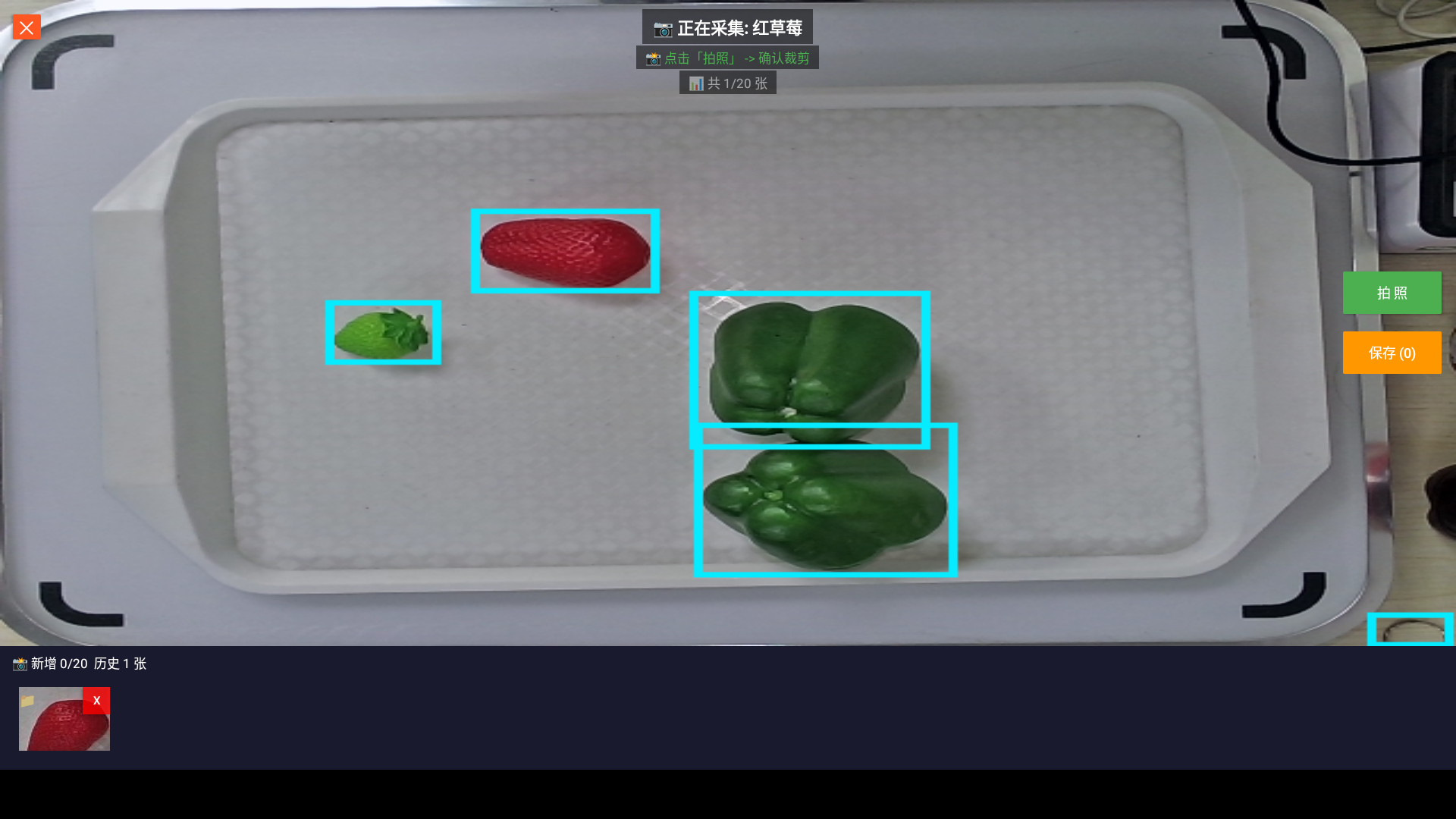
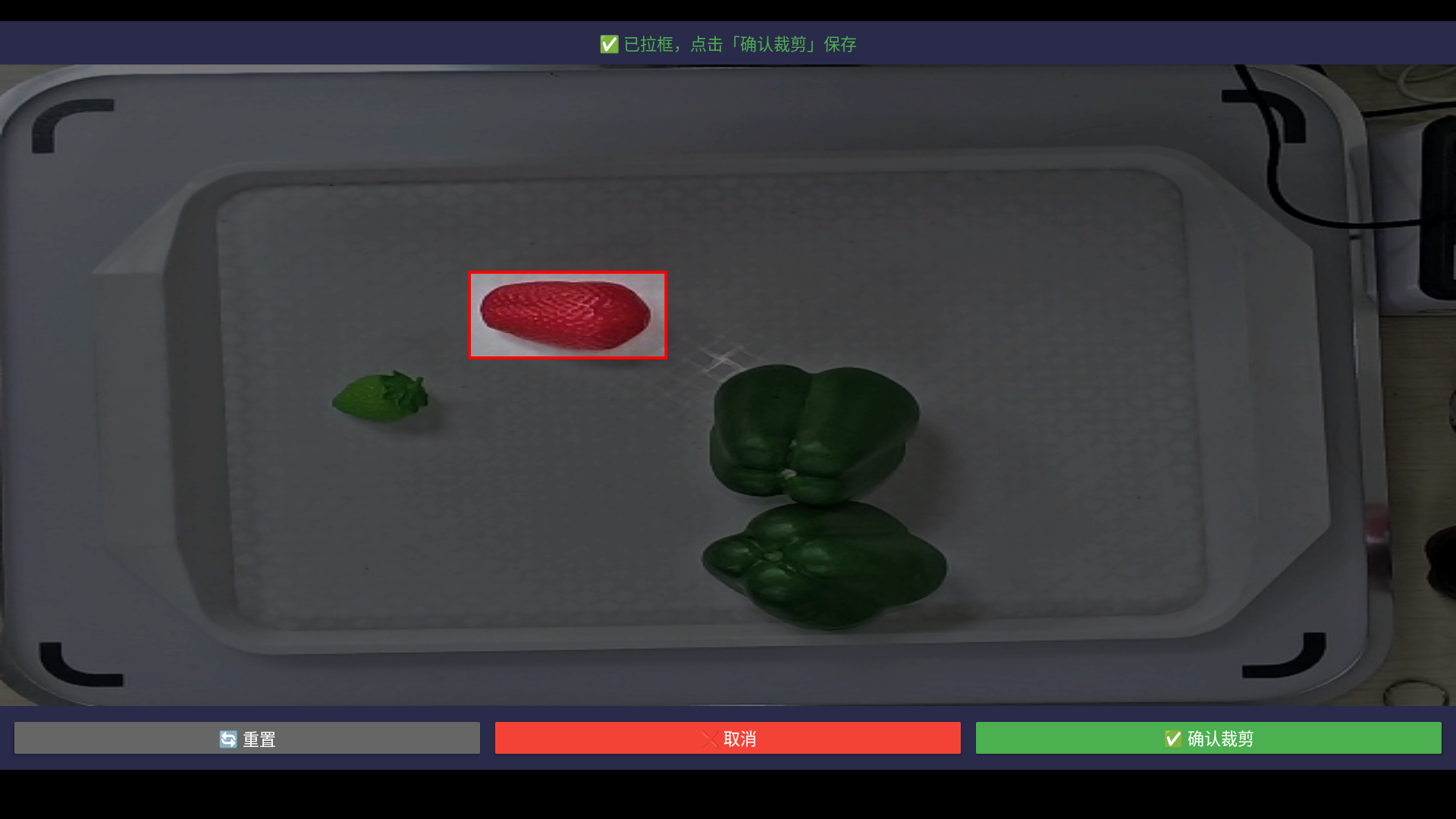
After shooting, the crop confirmation page opens: drag a box over the target region, then choose reset, cancel or confirm crop. Once confirmed, the image is saved as an original image according to the crop region and added to the current category's local sample library; no online matting is performed.
2.5 Real-time Recognition · Stable Checkout (Locked Mode)
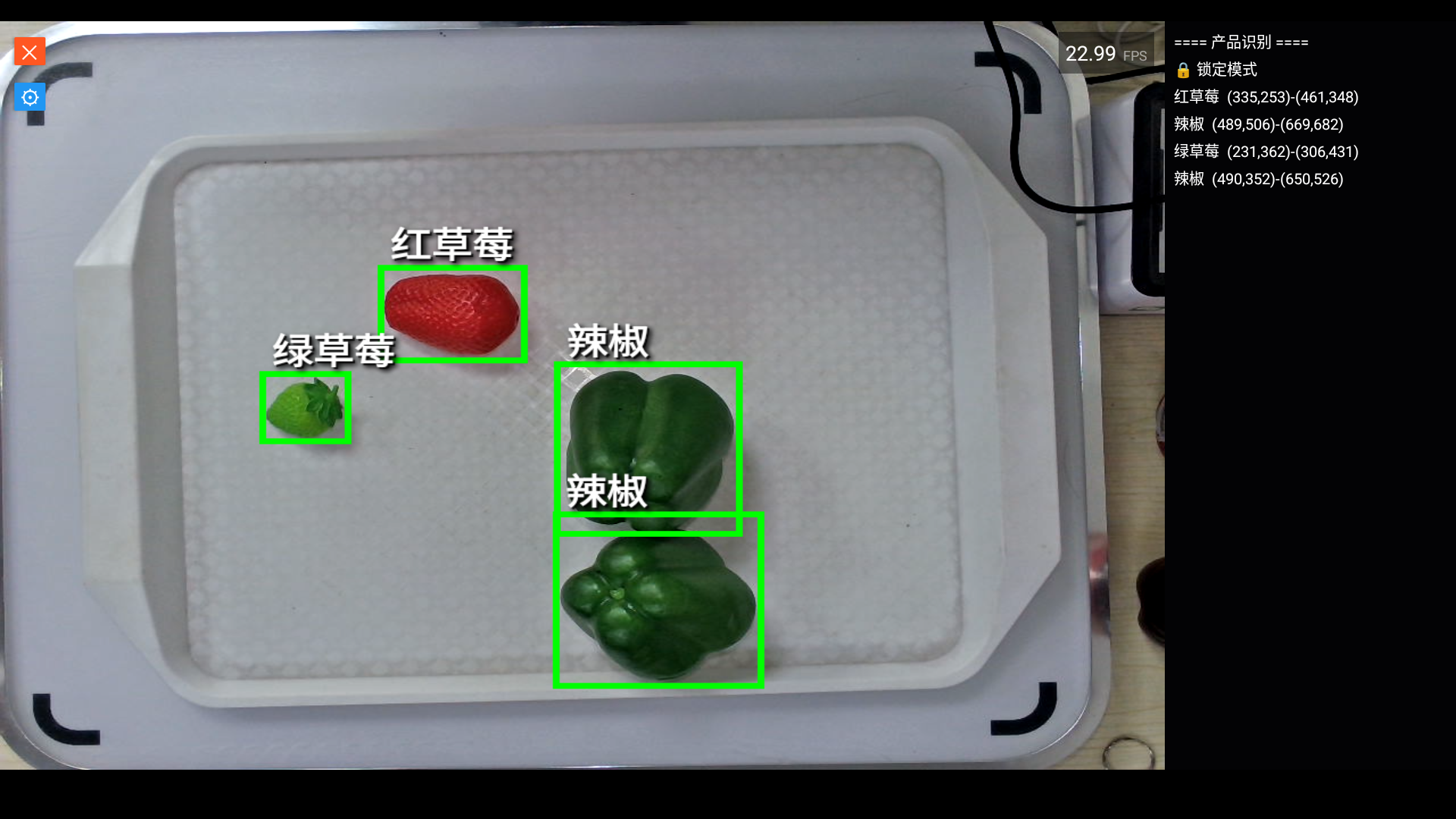
Tap "Stable Checkout" on the home screen to enter locked mode. Targets are marked with green detection boxes, the right side lists recognized products with category names and target coordinates, and the real-time frame rate is shown at the top. This mode stabilizes the classification result for the same target and only outputs it after several consecutive consistent results, so labels rarely jump between adjacent categories. It suits checkout and other scenarios that need stable results.
2.6 Real-time Recognition · Real-time Tracking (Free Mode)
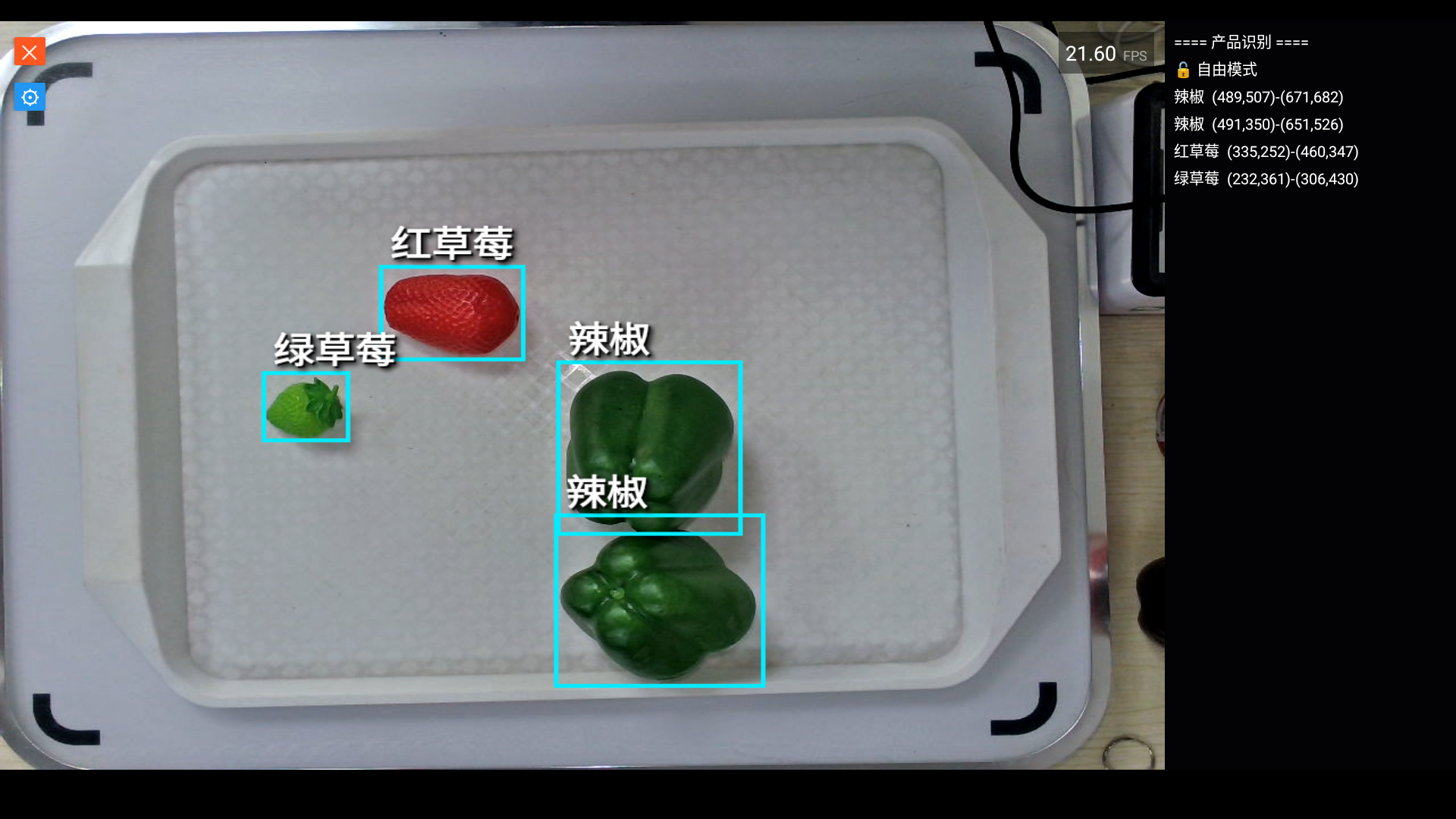
Tap "Real-time Tracking" on the home screen to enter free mode. Targets are marked with cyan detection boxes, and the right side lists free-mode results with category, coordinates and frame rate. This mode outputs the current recognition result per track ID in real time without stabilization locking, which suits tracking scenarios that must reflect frame changes immediately.
2.7 Verification Center
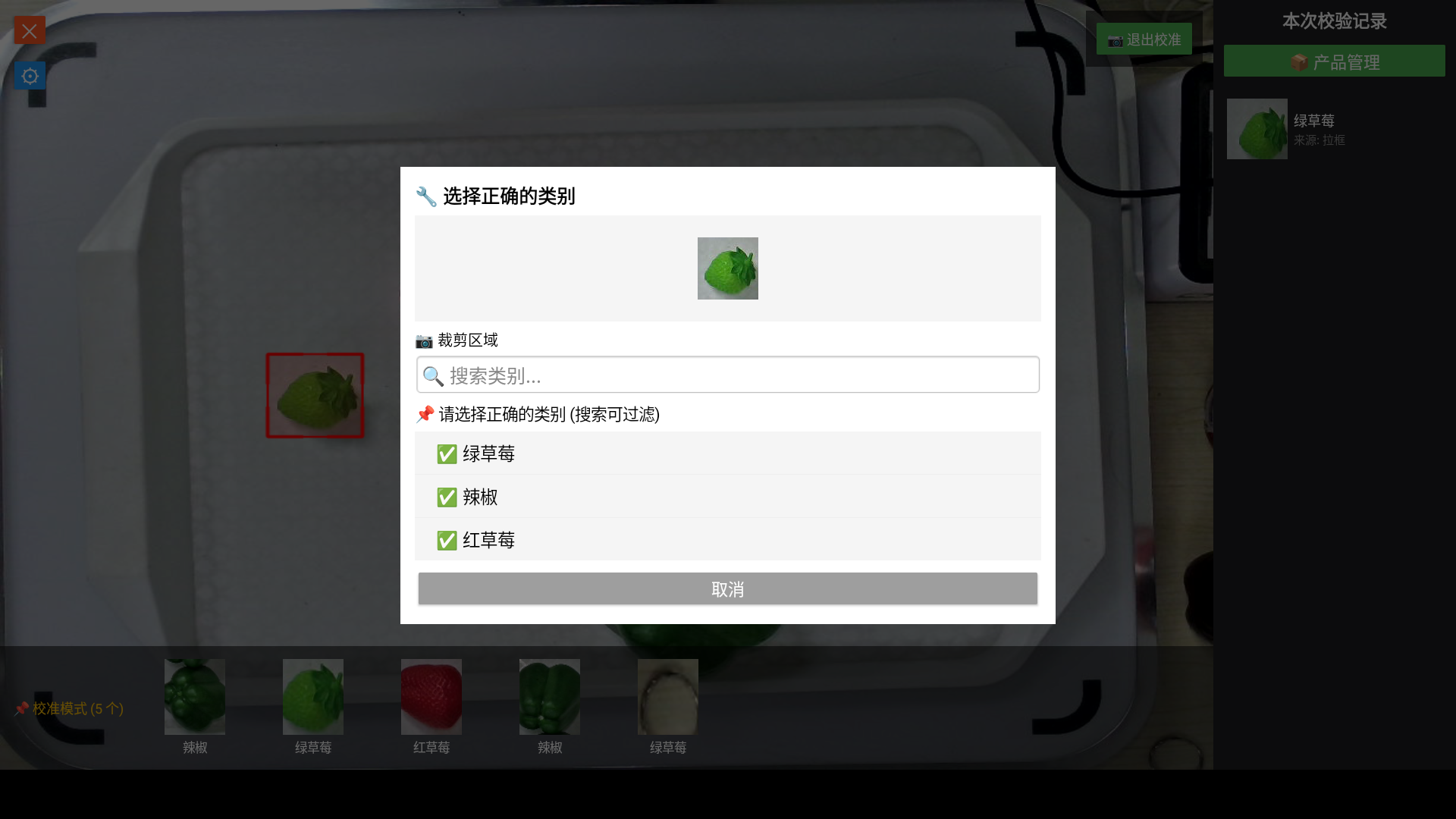
The verification center is used for on-site correction of recognition results. It opens with a camera preview that performs detection and classification in real time. Tap "Calibrate" to freeze the frame and enter box-selection mode, then drag a box over the region to correct; you can also tap a thumbnail or an existing result entry directly.
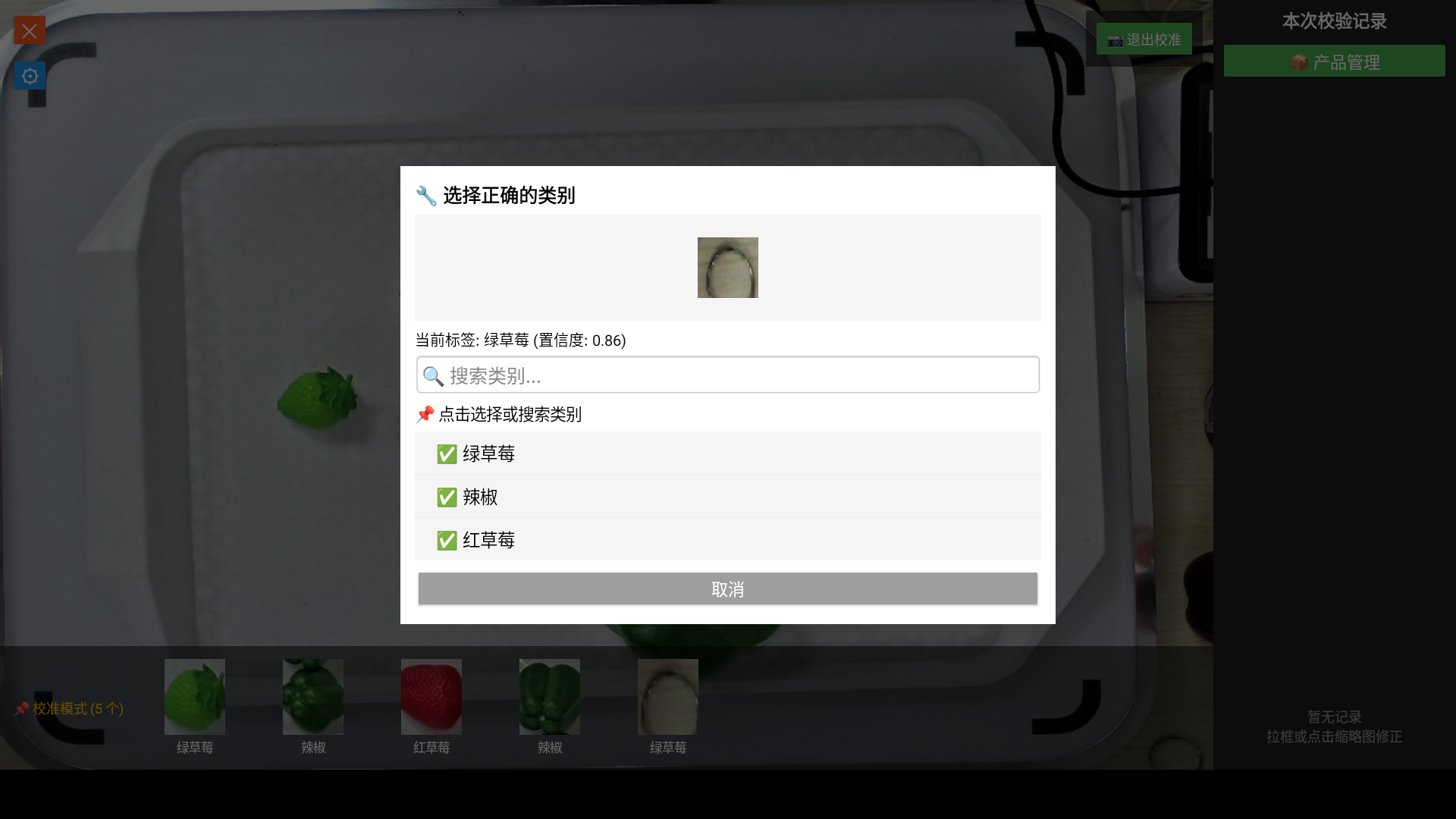
After selecting a target, a category picker appears showing the current label and confidence. Enter a keyword in the search box to filter candidate categories, then tap the correct one to save locally. "Verification records" on the right lists the corrections of this session and marks their source (box selection or correction); tap an entry to view and zoom the full image. The page also provides entries to product management and to exit calibration; leaving calibration restores the live camera preview.
2.8 Exclusion Management
Exclusions are negative categories: targets that match an exclusion show no detection box and are excluded from normal category output, which filters utensils, packaging, decorations and other objects that should not be recognized. Tap "Exclusions" in product management to enter the exclusion view; the button becomes "Back to Categories". The list shows the exclusions added so far and their sample image counts.
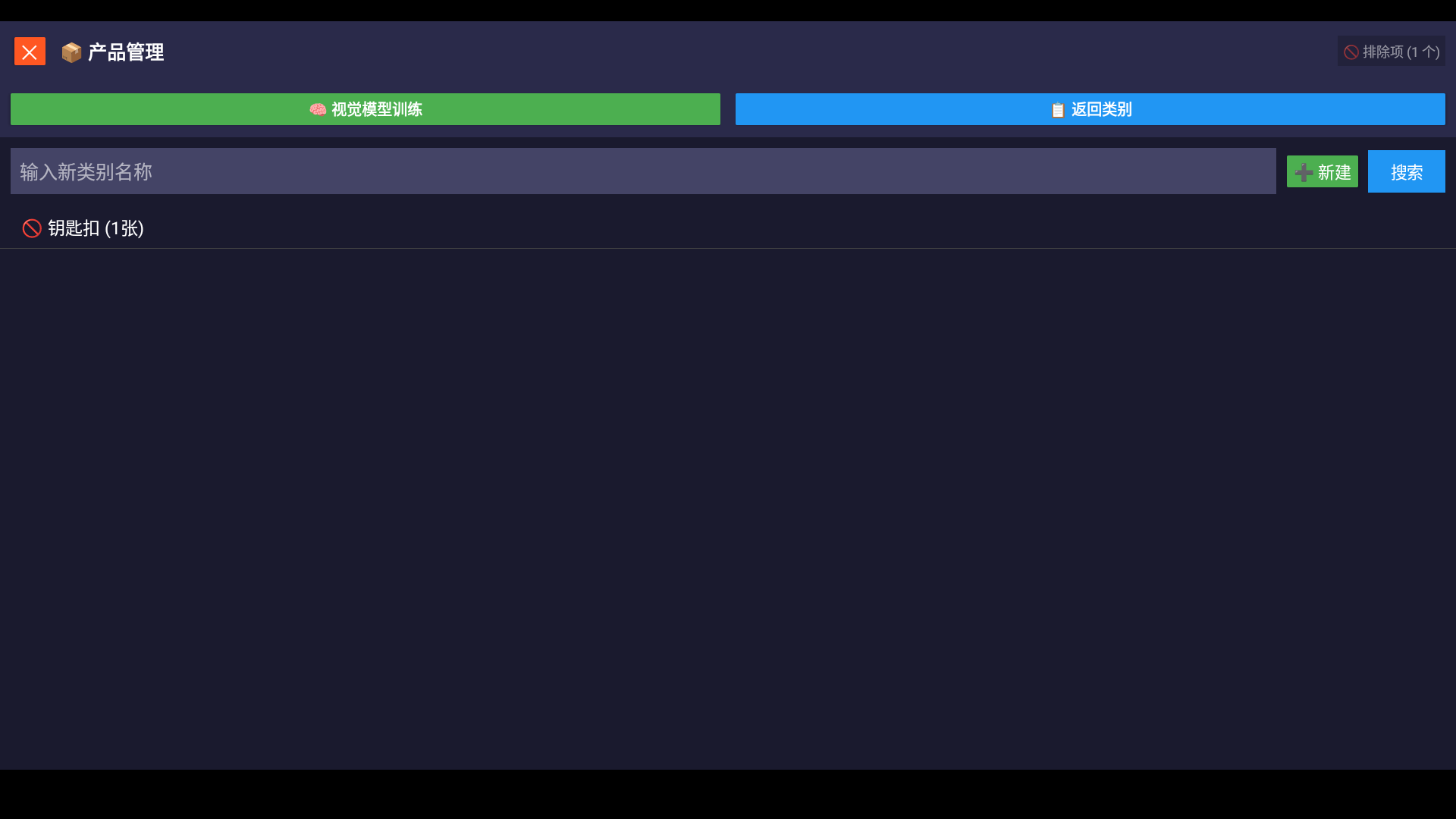
Exclusions cannot be renamed or deleted directly. To restore one as a normal category, choose "Remove from exclusions" in the entry actions to turn it into a positive category. Exclusions can also collect sample images by shooting.
3. Core Modules
3.1 Activation Code License (Local Offline)
License verification is completed entirely on the device and no device information is sent to a server. The device ID prefers the system Android ID; if unavailable, a random UUID is generated and persisted.
- Code structure: after removing hyphens and spaces, the code is a 24-character hexadecimal string. Characters 1–16 are the verification digest, characters 17–20 are the activation start date (hex day number) and characters 21–24 are the end date (hex day number).
- Device binding: the digest is the first 16 characters of MD5 over the last 5 characters of the device identifier concatenated with the start and end dates, so a code is only valid on its bound device.
- Validity window: if the current time is earlier than the start date the window has not started; if later than the end date the code has expired. The maximum historical time is recorded to prevent bypassing the window by setting the system clock back.
- Universal unlock code: codes prefixed with UNLOCK- unlock directly, used for on-site debugging or emergency activation.
- Gating: when not activated, the classification and detection models refuse to initialize, and product management, real-time recognition and the verification center each re-verify the activation code before entering.
3.2 Detection and Classification Pipeline
- The similarity threshold defaults to 0.6 and is adjustable between 0.3 and 0.9; results below the threshold are not output as a valid category.
- Locked mode enables a stability cache: a label is updated only after the same tracked target is recognized consistently across several frames, avoiding label jumps.
- Results matching an exclusion are marked as negative samples, filtered from the UI, and neither boxed nor added to the normal result list.
3.3 Local Persistence of Categories and Features
Category names, exclusion flags and their feature vectors are stored in local files (a feature file and a category mapping file), and sample images are stored in the local image directory. "Vision model training" in product management extracts sample features on-device and writes them into the local feature library. After a restart the app restores categories and features from local files without online synchronization.
3.4 Sample Capture and Ingestion
The flow is: shoot samples for the current category → drag a box over the target on the crop page → confirm crop → the original image is written into the local sample directory by category. Ingested samples can be reviewed in product management and the verification center; deleting a single image or clearing new images is done locally.
3.5 Verification and Correction
Corrections in the verification center are tagged with their source (box selection / correction) and saved to local records. Samples assigned to the correct category can supplement that category's features and improve later accuracy. Correction records can be reviewed in the right-hand list; tap an entry to browse and zoom the full image.
4. Standalone vs. Online Edition
| Feature | Standalone Offline | Online Edition |
|---|---|---|
| Licensing | Local activation code, device binding + validity period | Online gateway activation / heartbeat status sync |
| Category features | Extracted on-device, persisted to local files | Downloadable from the cloud, updated after submission |
| Sample images | Captured and ingested locally | Can be backed up to the server and restored |
| Model acquisition | Bundled in the AAR, available offline | Test versions / model updates downloadable online |
| Training updates | On-device feature ingestion, no cloud training | Images uploaded for cloud training and model updates |
| Version rollback | Not supported | Rollback to server backup versions |
| Sample matting | Original image saved directly | Online AI matting available |
| Network requirement | Recognize and maintain categories offline | Network required for download and recognition; unusable offline |
5. Runtime Environment and Notes
- Runs on arm64-v8a devices that support RKNN (e.g. RK3566 / RK3576 / RK3588 series) with the NPU driver available; ordinary emulators cannot run inference.
- Before entering recognition features for the first time, enter a valid activation code on the activation page and pass local verification.
- Recognition quality depends on sample quality: capture samples from multiple angles with clear lighting, and box the main body of the target when cropping.
- Exclusions filter fixed distractors; do not mark dishes that must be recognized as exclusions.
- This edition makes no network requests at all. If you need server-side training, version rollback or cloud backup, use the corresponding online edition.