
Face Recognition System Interface Guide
System Overview
The face recognition system provides web-based face enrollment and device authorization management. It consists of a Python Flask business service, two C++ face detection services and a Caddy reverse proxy. Face images are stored in cloud storage, while device and activation code data are kept in a SQLite database. It supports face enrollment from PC web pages and Android devices, and the accompanying web admin console manages activation codes, devices and face photos in one place.
1. PC Client (Web Page)
A PC browser opens the Caddy proxy address, which offers two enrollment pages: realtime video enrollment and snapshot enrollment.
1.1 PC Realtime Capture Page realtime.html
Access URL: https://
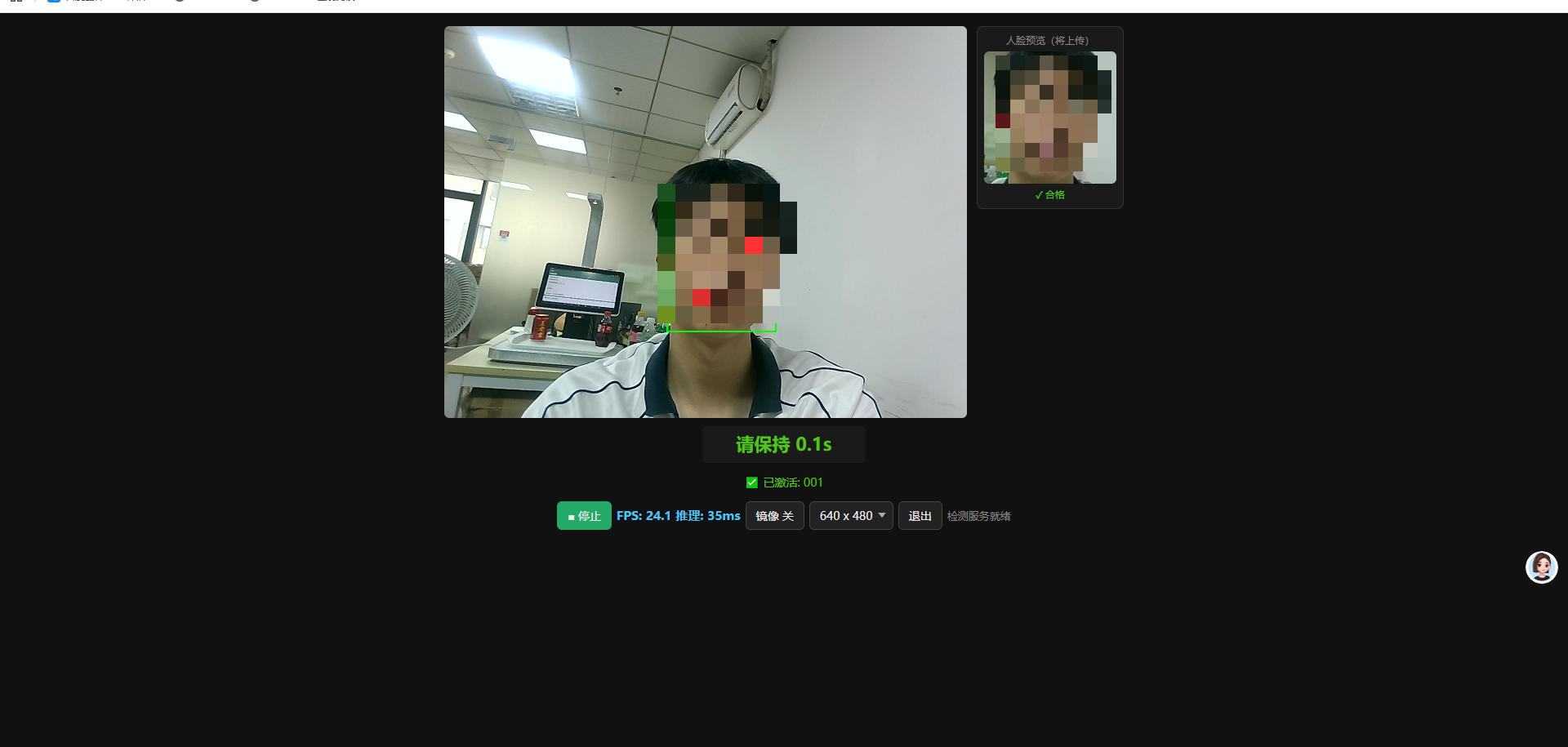
Description: detects faces continuously on the video stream and captures automatically once the conditions are met.
- Open the page and enter the activation code issued by the administrator to complete device verification;
- Start the camera; the page shows the live video and draws a face detection box;
- The system validates face metrics: pose angles, image quality, face occlusion and eye state;
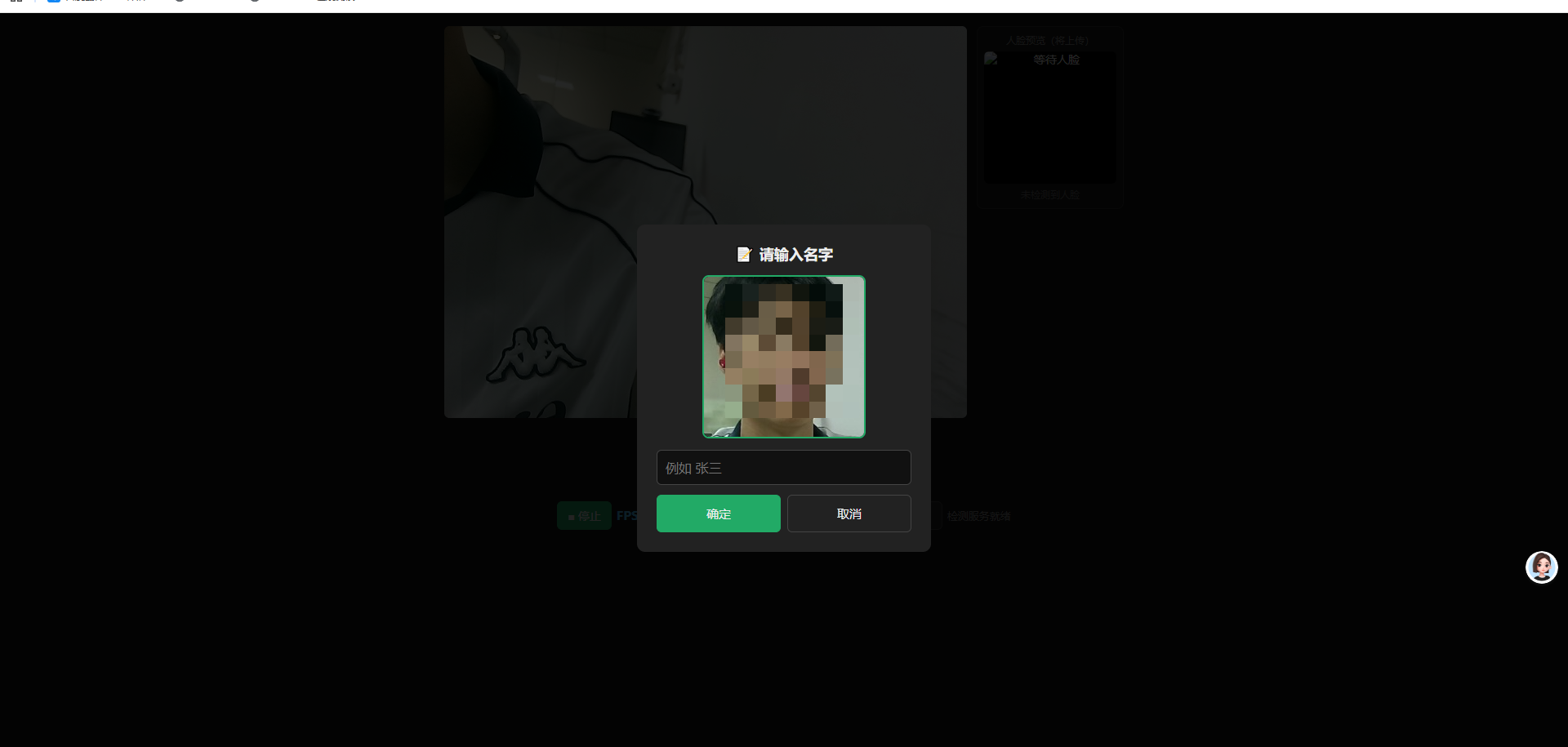
- When all checks pass continuously for 1.3 seconds, the frame freezes automatically and a dialog asks for the person's name;
- After confirmation, the base64 face image is uploaded to the server and archived in cloud storage;
- If the conditions are not met, the page shows real-time hints such as low light, blurry image, please face the camera or do not cover your face, guiding the user to adjust posture and environment.
Layout: activation code input at the top; camera preview in the main area; status area at the bottom showing quality score and pose state.
1.2 PC Snapshot Capture Page snapshot.html
Access URL: https://
Description: manual snapshot detection and enrollment, with no automatic timing logic.
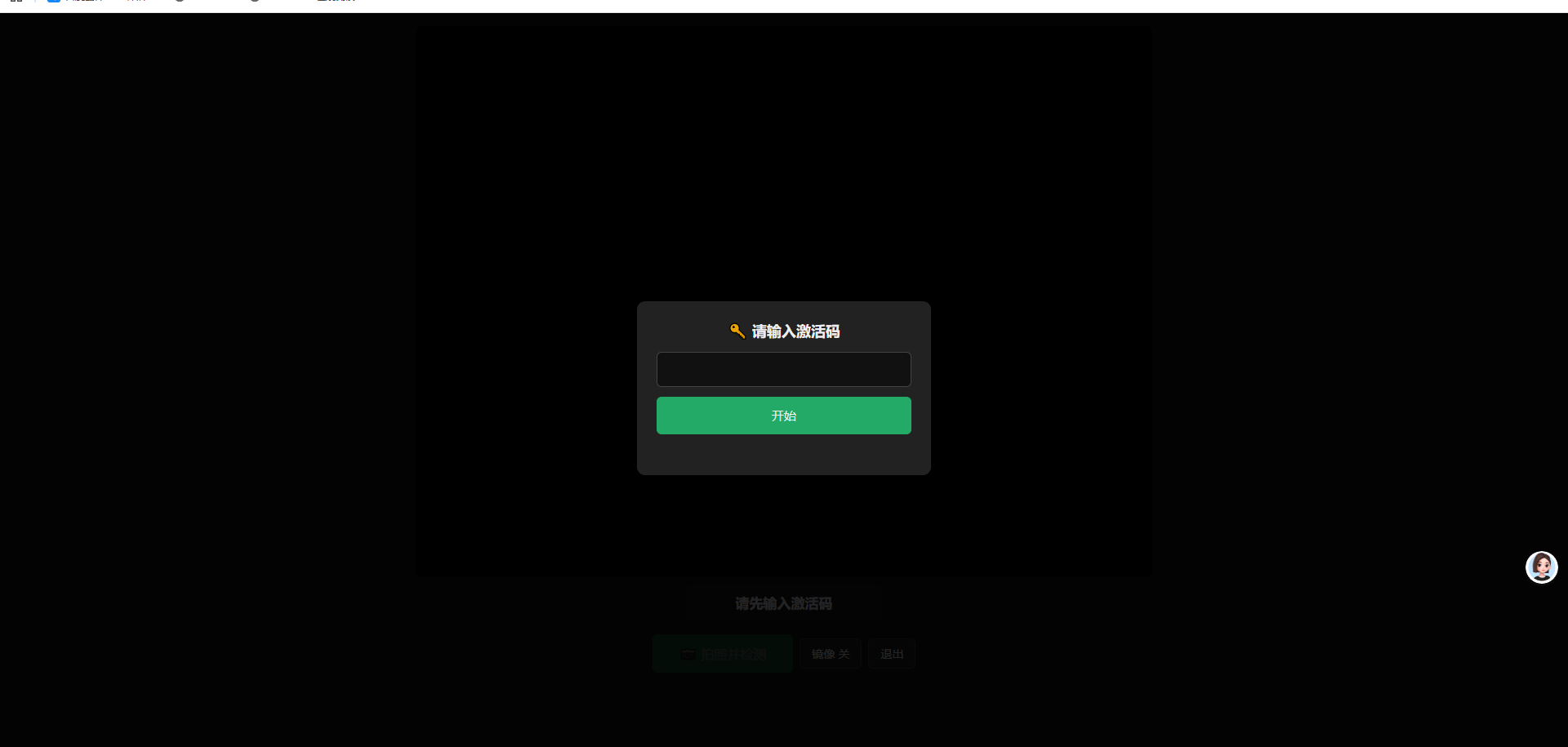
- Enter the activation code to complete device verification;
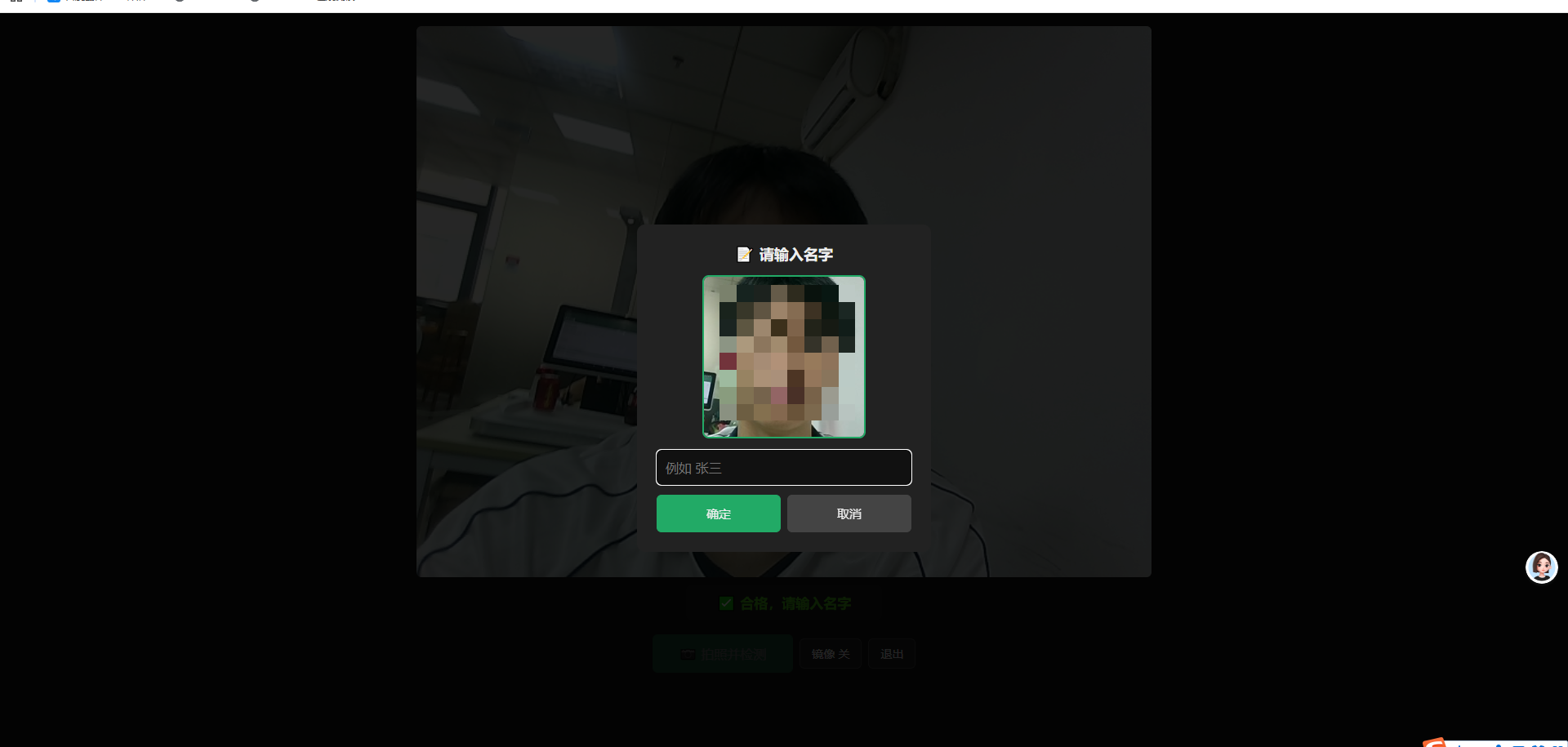
- Tap [Take Photo and Detect] to capture the current frame;
- Call the C++ interface /check on the single image; the checks run in the order occlusion → pose → image quality;
- If it passes, a name input dialog appears and the face image is uploaded; if not, the corresponding error reason is returned;
- Suited to unstable on-site environments: the operator controls when to shoot and enrollment is never triggered automatically.
Layout: activation code input area; video preview area; capture button; text area for detection results.
2. Android Client
Note: there is no standalone Android app. Android devices open the web enrollment pages in a browser, and the pages can also be wrapped as an Android app with a WebView. Android device IDs start with android_, which distinguishes them from PC web browser devices. The screenshots below show the Android interface.
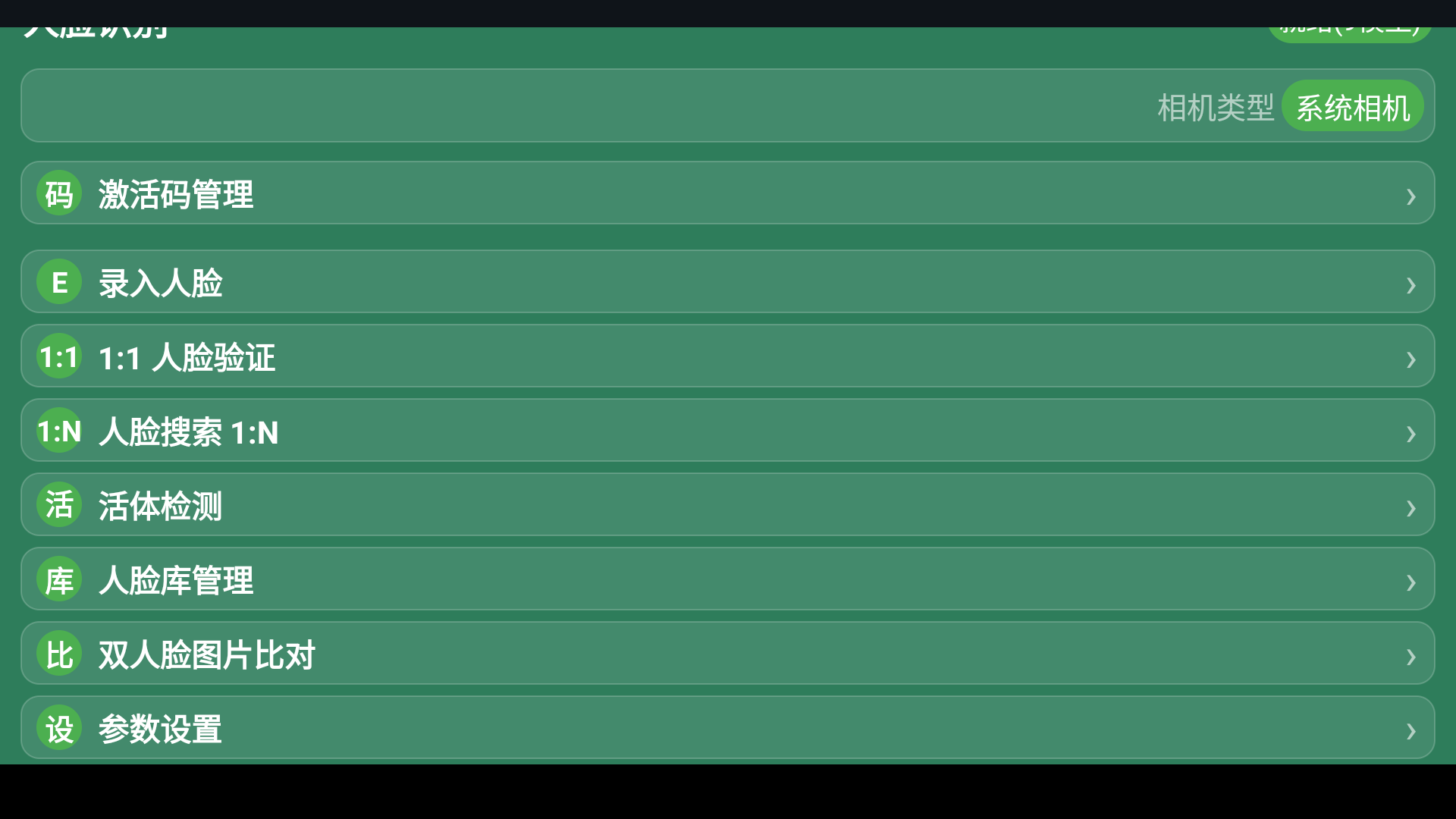
2.1 Android — Main Screen
Description: the entry point for all Android features, including activation code management, face enrollment, 1:1 face verification, 1:N face search, liveness detection, face library management, two-image face comparison and parameter settings.
2.2 Android — Activation Code Verification
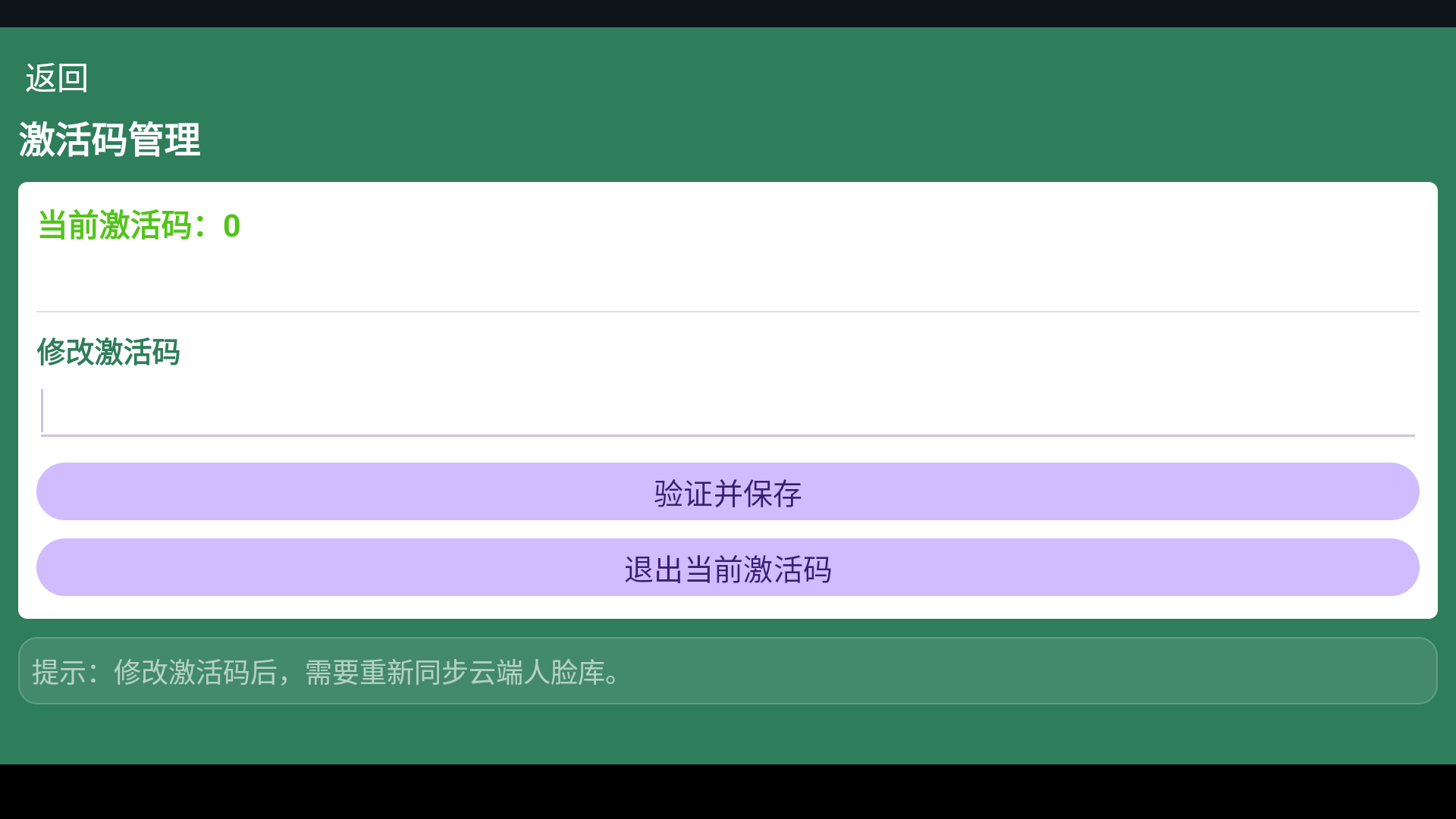
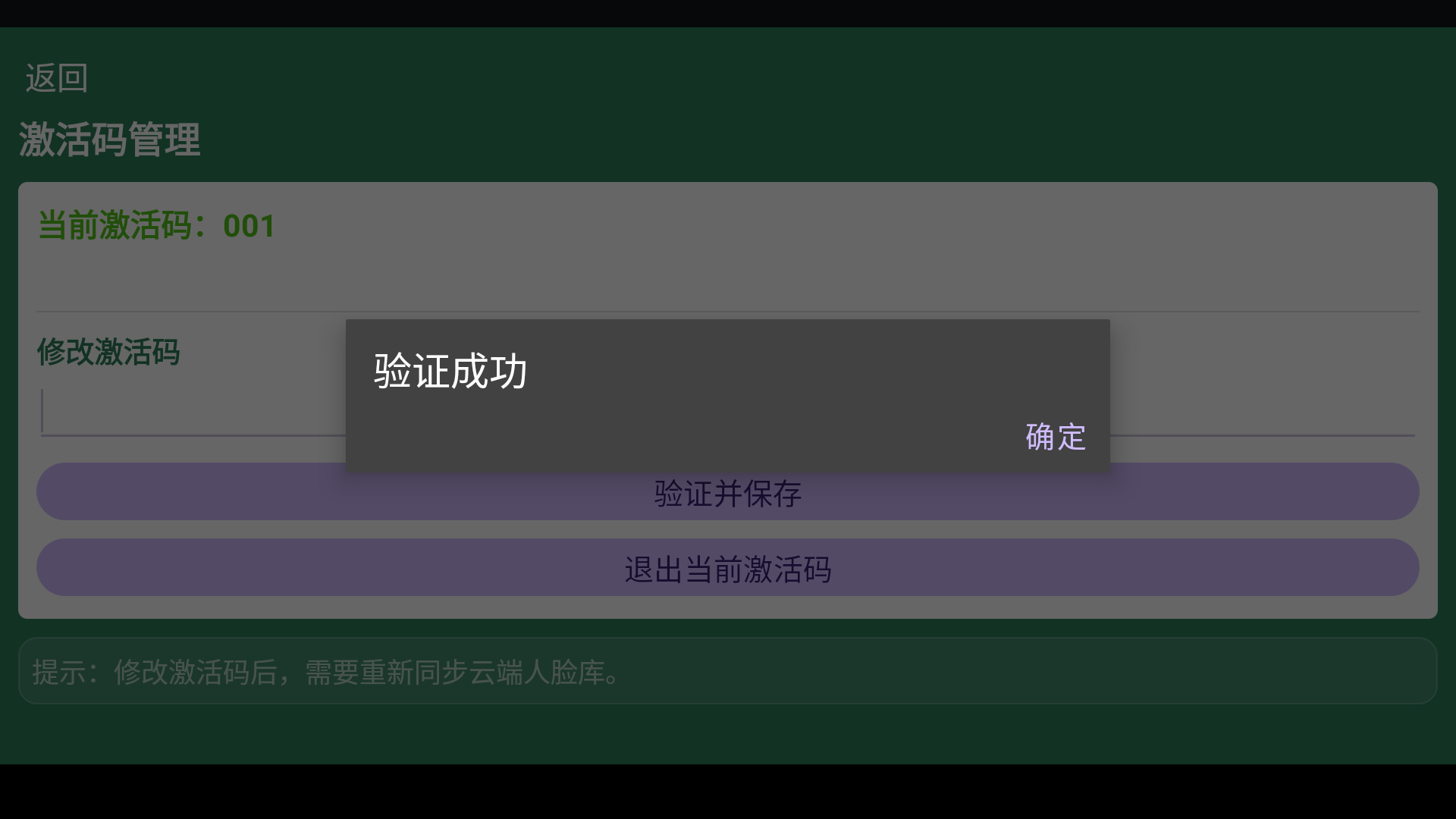
Description: the first step for an Android device to access the system.
- Open the web page; a device_id starting with android_ is generated automatically and saved to local storage;
- The user enters the activation code and calls the interface for verification;
- Verification logic: check whether the code is valid, whether it has expired and whether the maximum number of bound devices has been reached;
- On success, jump to the face enrollment page; on failure, a dialog shows invalid activation code / activation code expired / binding limit reached;
- Device limits: PC browser devices are capped at 30; Android devices use the max_devices parameter configured on the activation code.
2.3 Android — Face Enrollment Screen (realtime and snapshot modes)
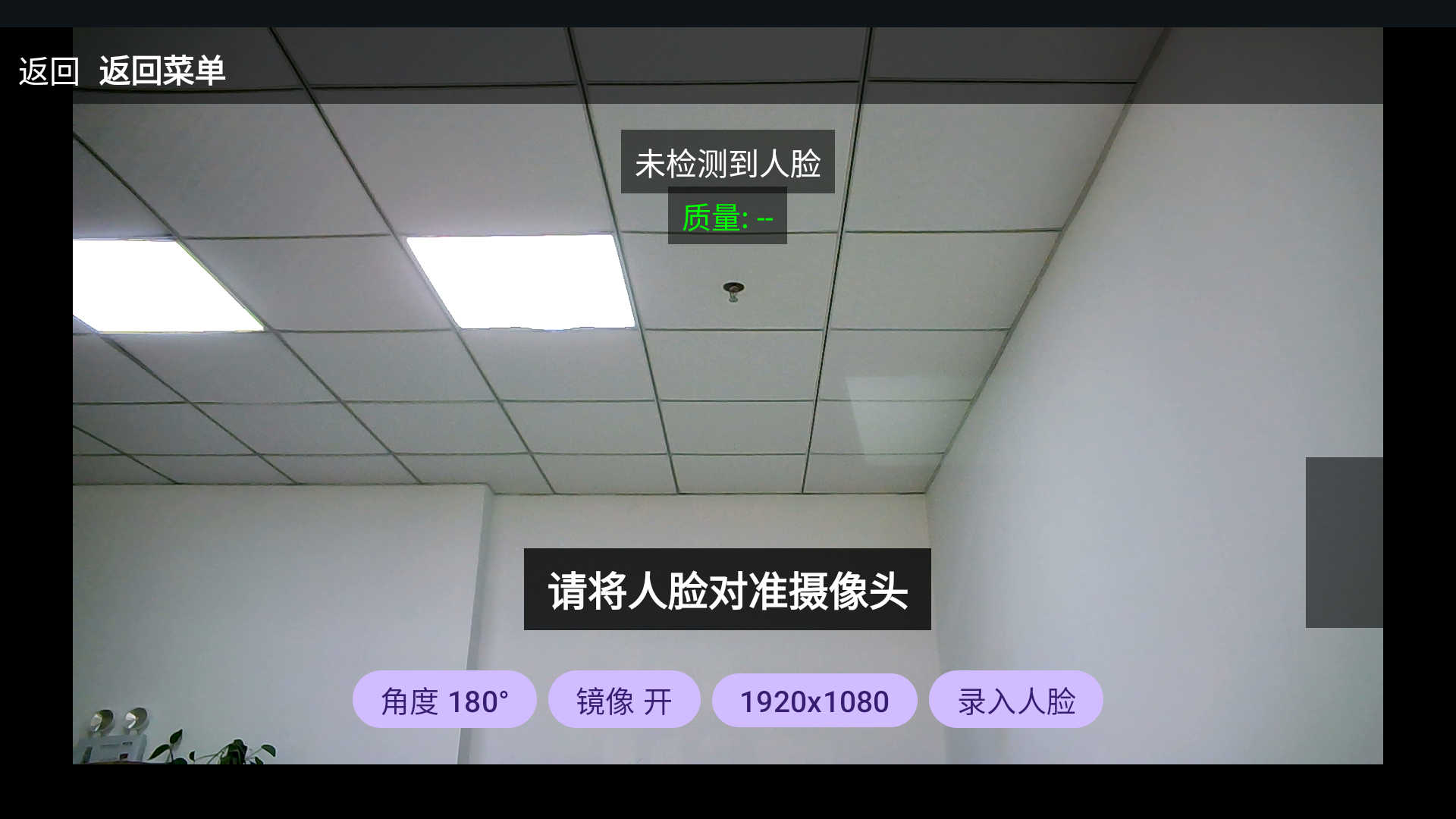
Description: performs face capture and enrollment on the Android device.
- Access the device camera to obtain the video stream;
- Realtime mode: calls the /detect interface repeatedly for frame-by-frame detection and enrolls automatically when all conditions are met;
- Snapshot mode: takes a still image manually and calls the /check interface for single-image detection;
- Once verified, the user enters a name and the base64 face image is uploaded to cloud storage;
- The page is adapted for mobile screens, with text hints that guide the user to adjust face position and avoid backlight, mask occlusion and profile views.
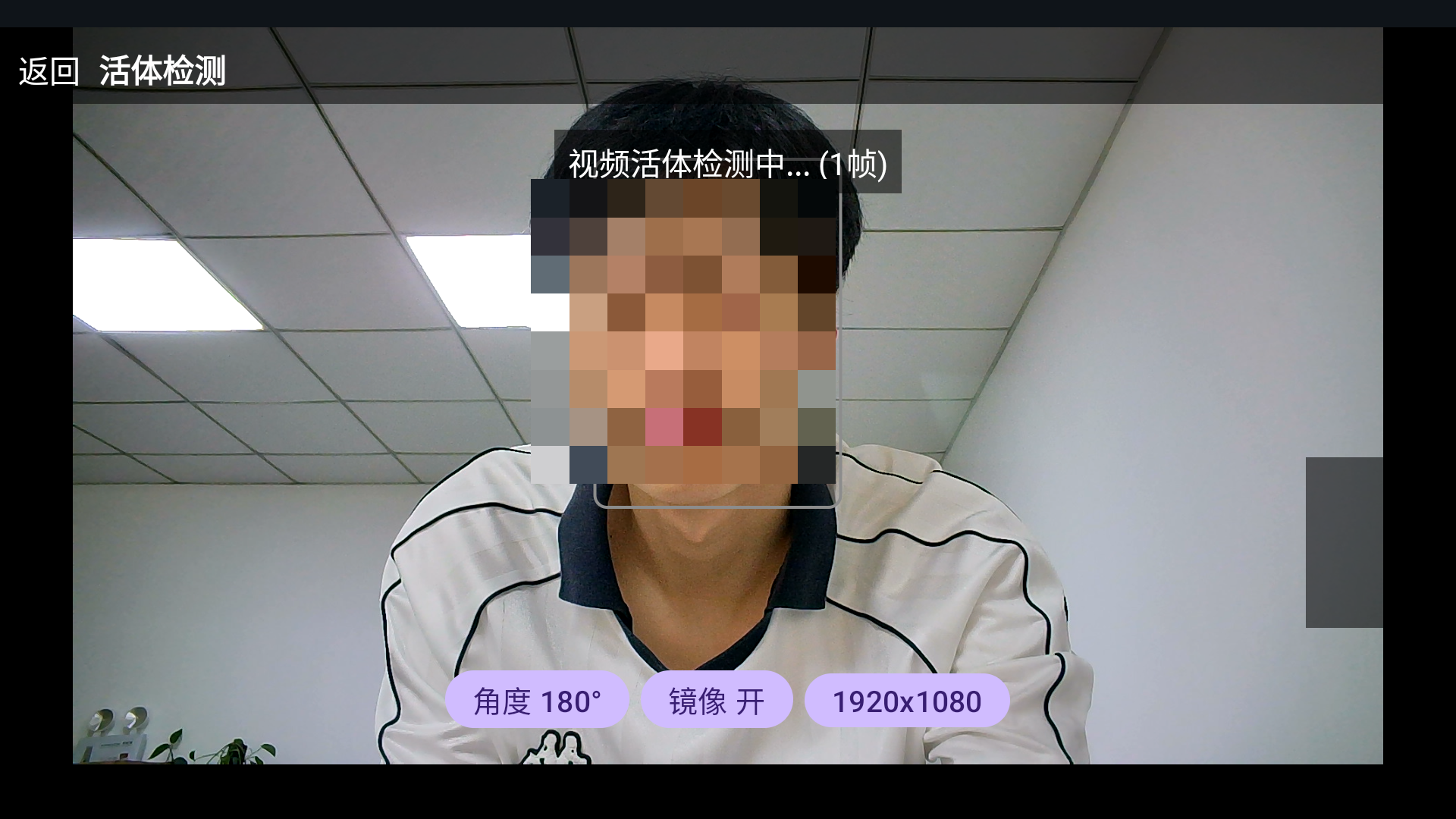
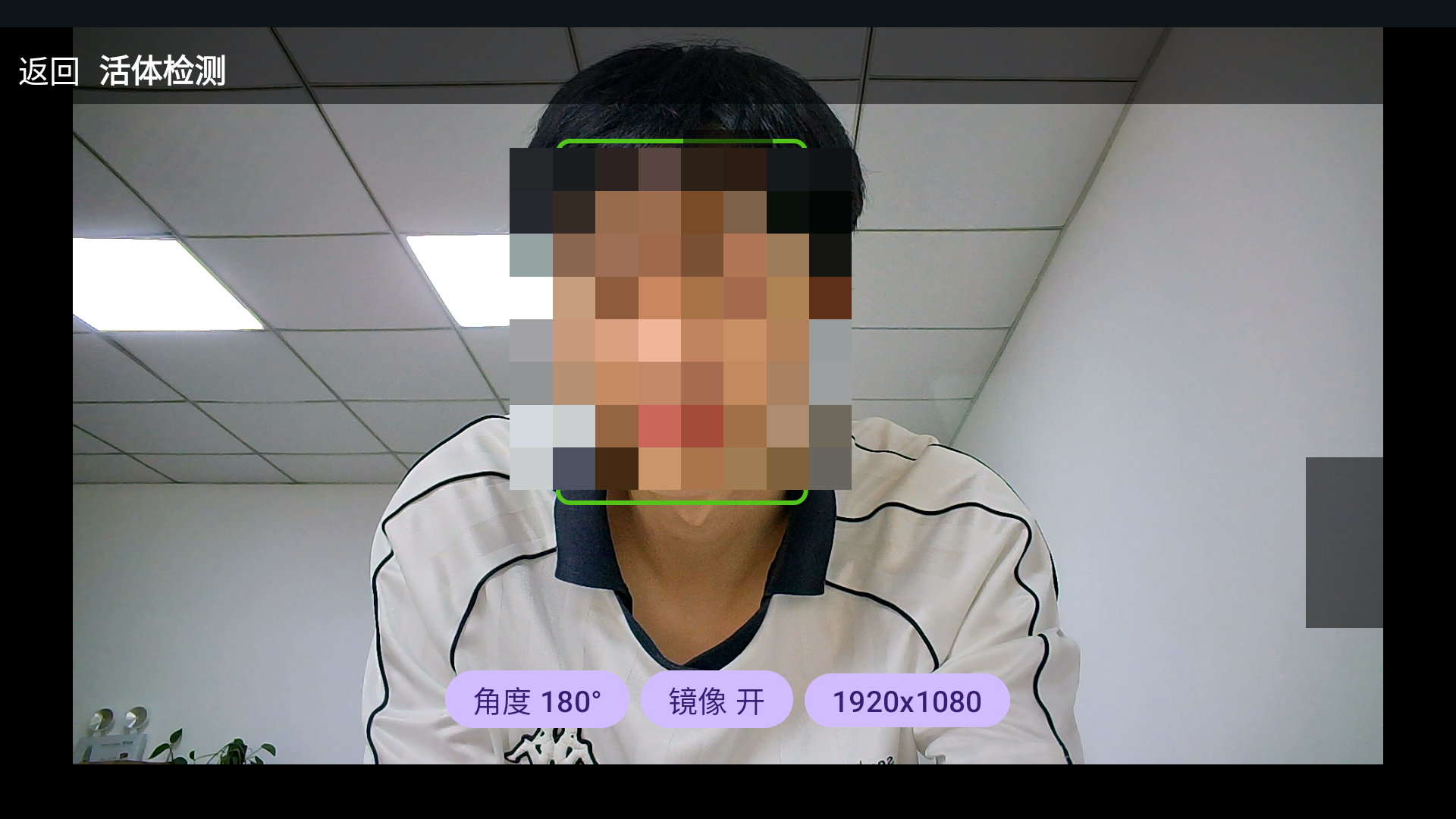
2.4 Android — Liveness Detection
Description: video-stream liveness detection that tells whether a real person is in front of the camera, preventing attacks with photos, videos and masks.
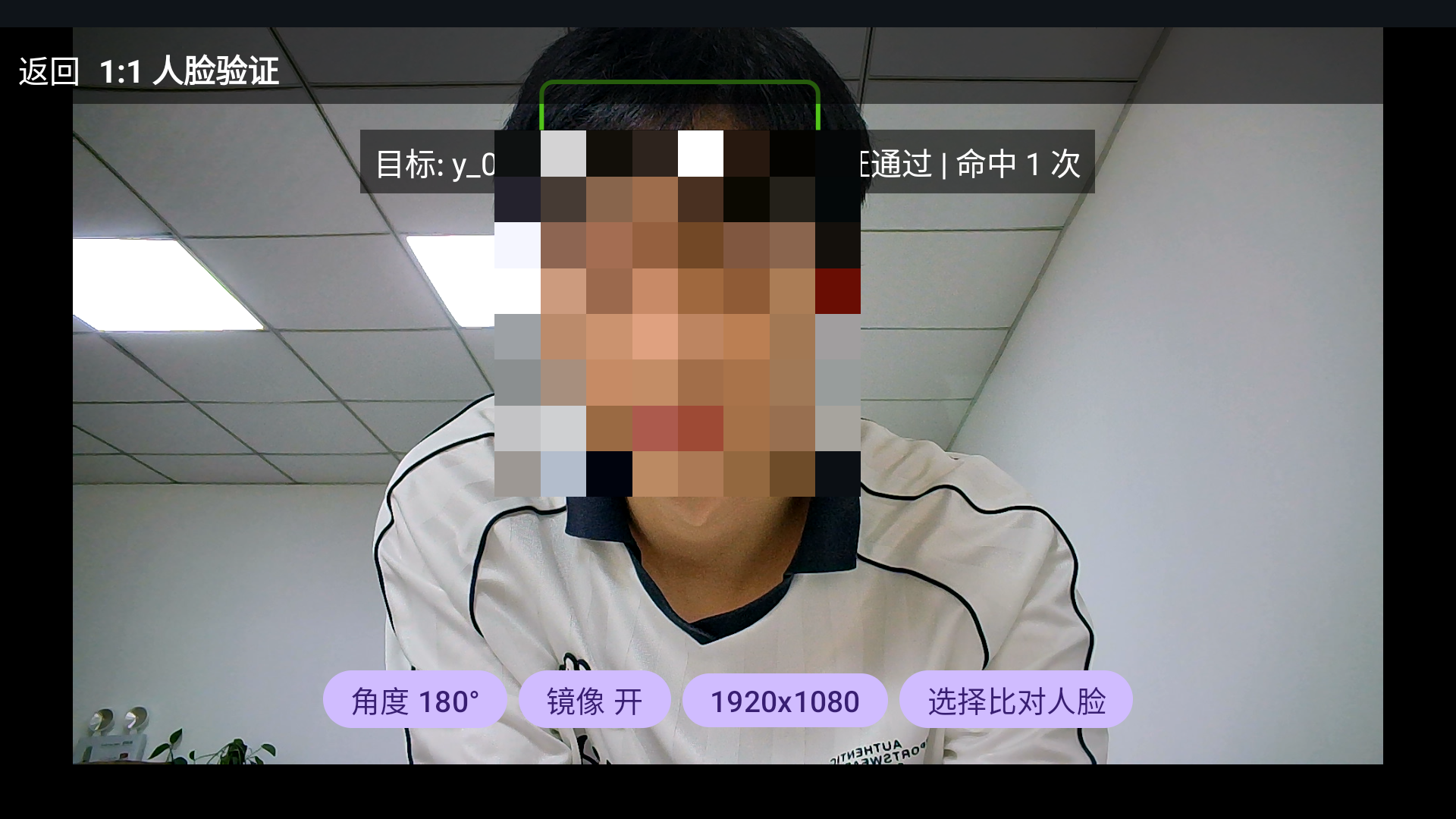
2.5 Android — 1:1 Face Verification
Description: select a target face image and compare it 1:1 with the live face from the camera, returning the similarity score and verification result.
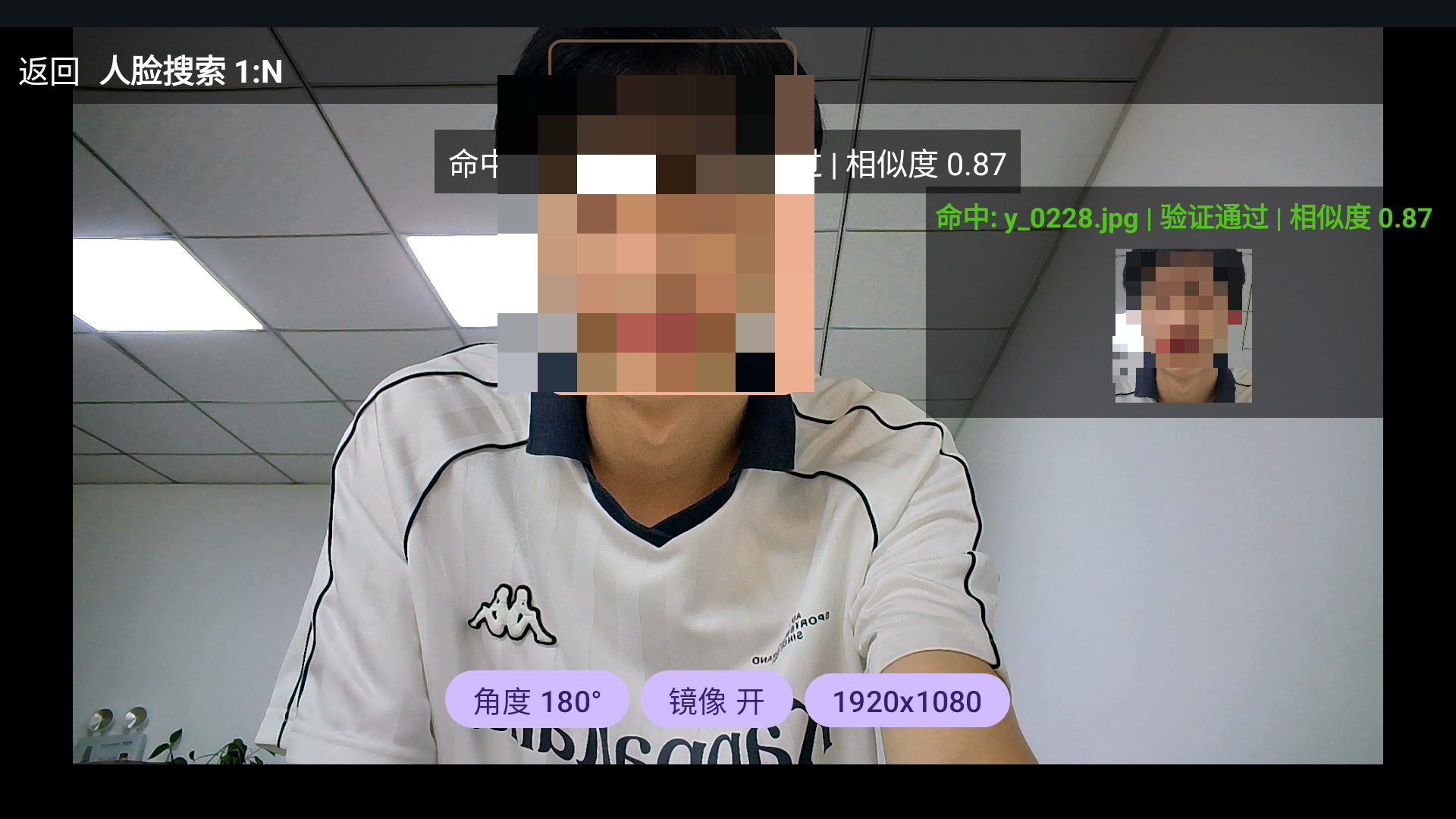
2.6 Android — 1:N Face Search
Description: compares the live camera face against the whole face library and, on a hit, returns the matched image and similarity score with a verification mark.
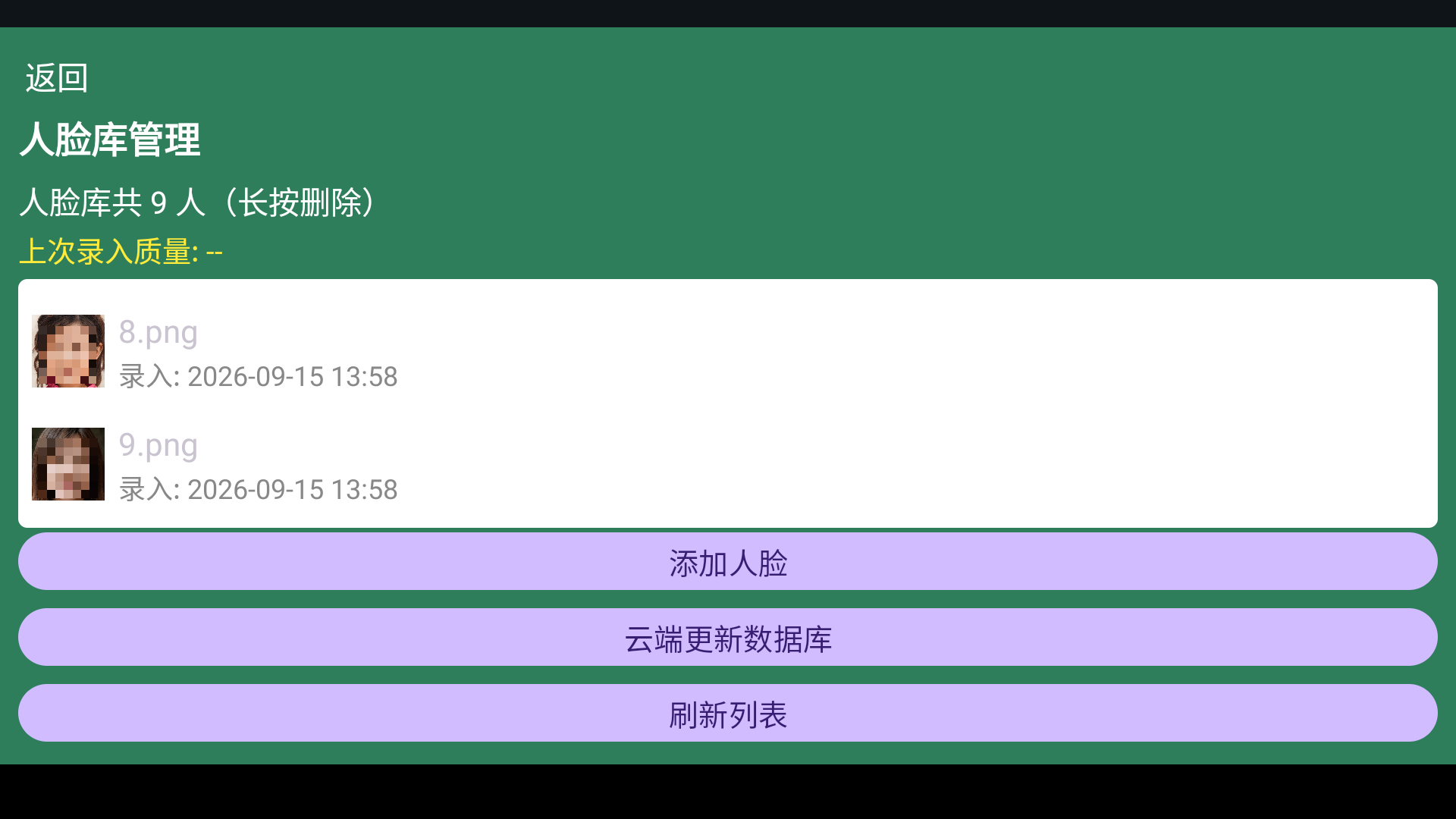
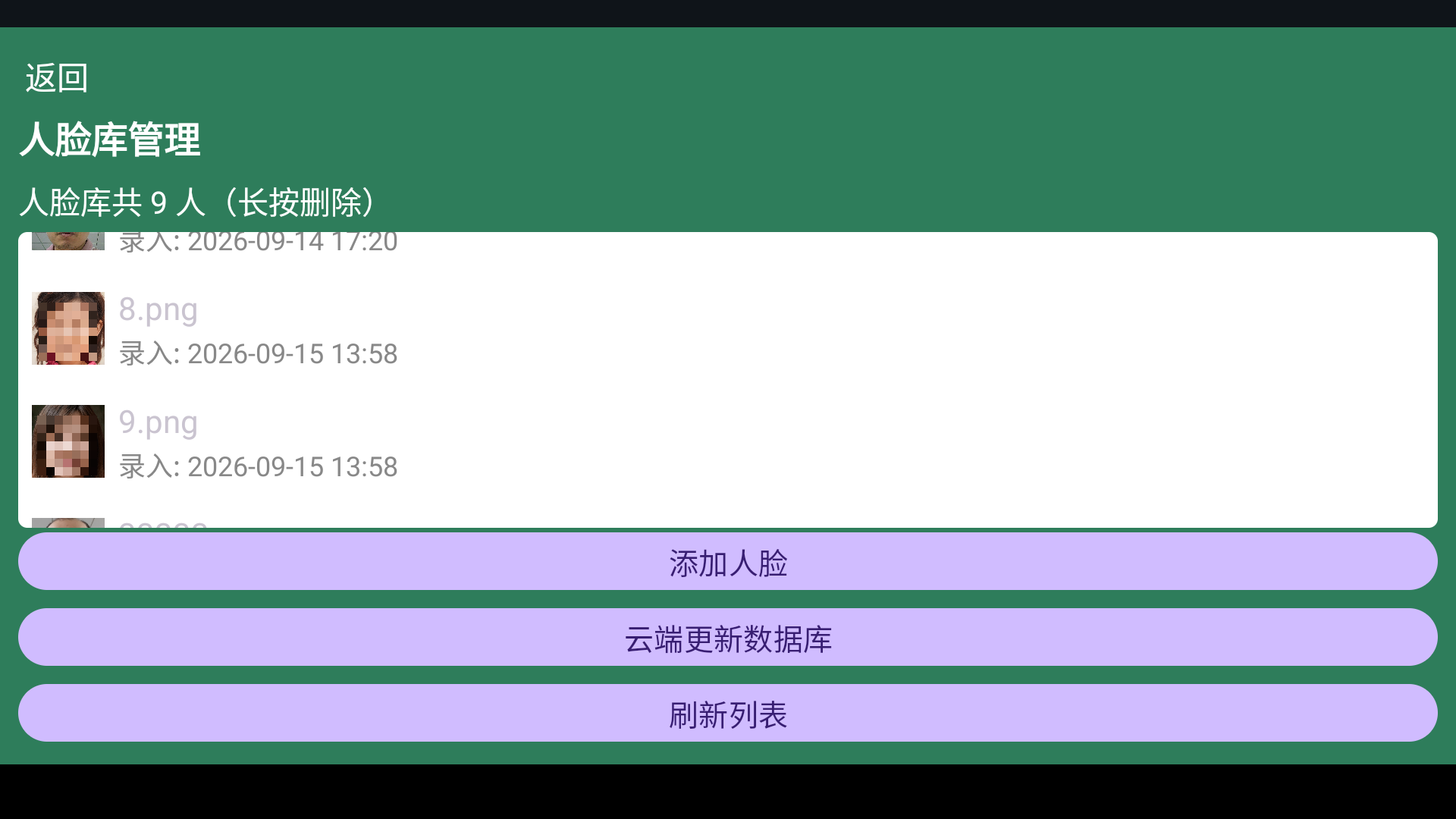
2.7 Android — Face Library Management
Description: shows the total number of people in the local face library and the enrolled entries with enrollment time; supports long-press delete, add face, update database from the cloud and refresh list.
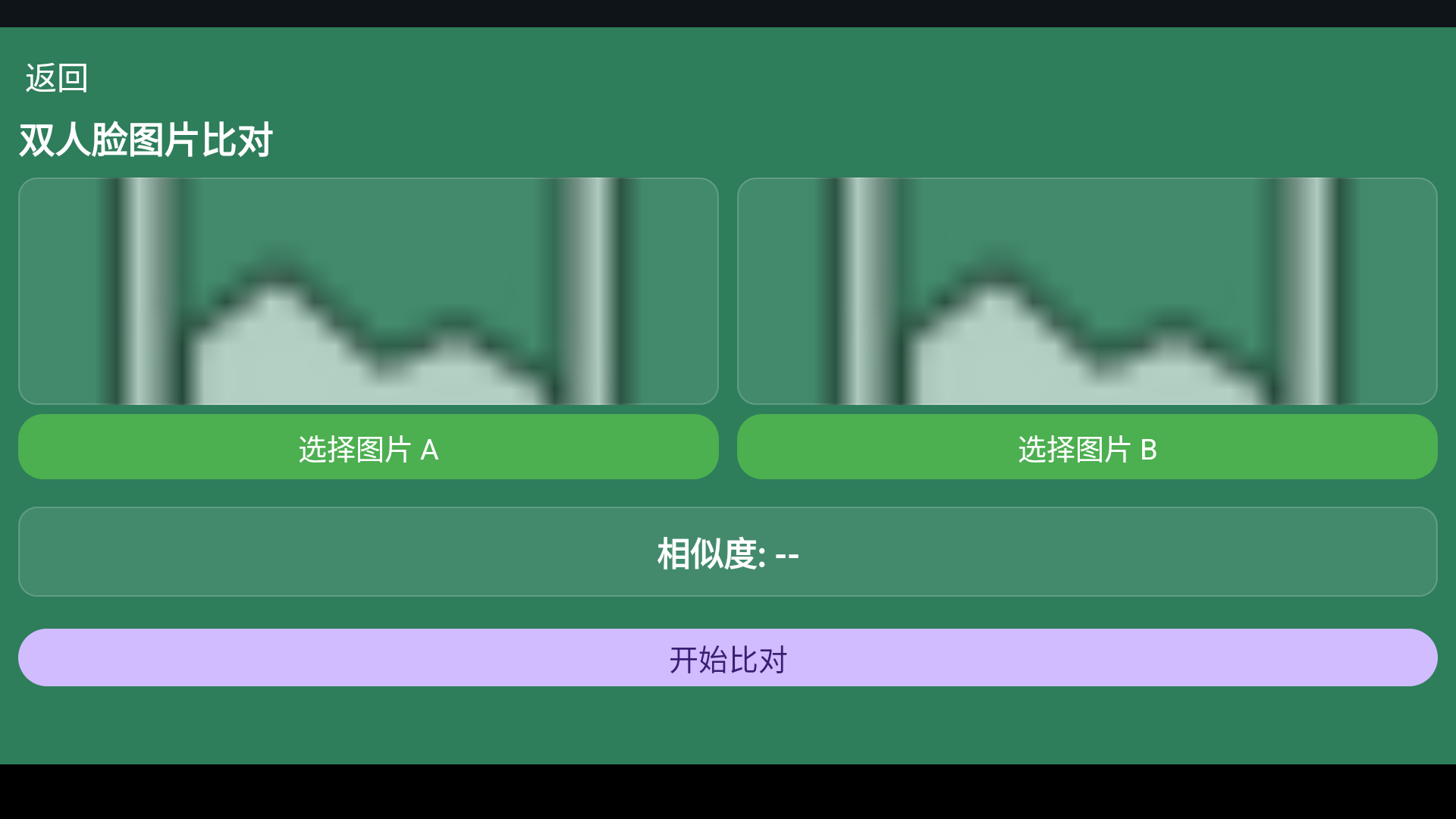
2.8 Android — Two-Image Face Comparison
Description: select image A and image B separately and compare the similarity of the faces in the two images.
3. Core Modules
3.1 Activation Code Management (Admin Console)
An activation code is the device admission credential for the whole system:
- The administrator creates activation codes in the admin console with these settings: code string, remark, maximum number of bound devices and expiry date;
- PC web device IDs start with web- and are capped at 30 bound devices; Android devices use the maximum device count configured on the activation code;
- The expiry date format is YYYY-MM-DD; after expiry, device verification fails immediately;
- Deleting an activation code also unbinds all devices bound to it;
- Face image path rule: faces/{activation code}/{name}_{HHmmss}.jpg, isolating files by activation code for easier grouping;
- Provided APIs: create, delete and list activation codes, and list all face photos under a single activation code.
3.2 Face Enrollment Validation Rules
| Check Item | Pass Criteria |
|---|---|
| Pose | Absolute yaw/pitch/roll ≤10°, may be relaxed to 15–20° in poor site conditions |
| Image quality score | quality ≥0.66, computed from lighting, blur and noise |
| Face occlusion | No more than 1 occluded key point in the eye and nose region |
| Eye state | Both eyes must be open; eye_left and eye_right must not equal 0 |
3.3 Face Storage
Face images are submitted as base64 to the Flask interface and transferred by the server to cloud storage. The face list can be fetched by device_id or by activation code through the interface, which returns public access URLs for the images.